# Importing & Exporting Audio
You **must** have the game closed when following this guide.
Currently there is no way to add new sounds to the game, only replace existing ones.
#### Prerequisites
| Sound Editor | **[**Download Here**](https://wiki.prowrestlingmods.io/link/8#bkmrk-sound-editor-%7C-thevi)** |
| ARC Tool | [**Download Here**](https://wiki.prowrestlingmods.io/link/9#bkmrk-pwm-arc-tool-%7C-grix) |
| WrestleMINUS | [**Download Here**](https://wiki.prowrestlingmods.io/link/9#bkmrk-wrestleminus-%7C-pozzu) |
#### Step #1 | Unpacking and Setting up WWise 2017
We need to install a copy of WWise 2017.1.2. This comes packed with [Sound Editor](https://wiki.prowrestlingmods.io/link/8#bkmrk-sound-editor-%7C-thevi).
1\. Open the dependencies folder and run WwiseLauncher.msi to begin installation. If you receive and alert to sign in, you can dismiss it by clicking outside of it, it is **not** a requirement.
2\. Click **i**nstall with all default installer properties.
[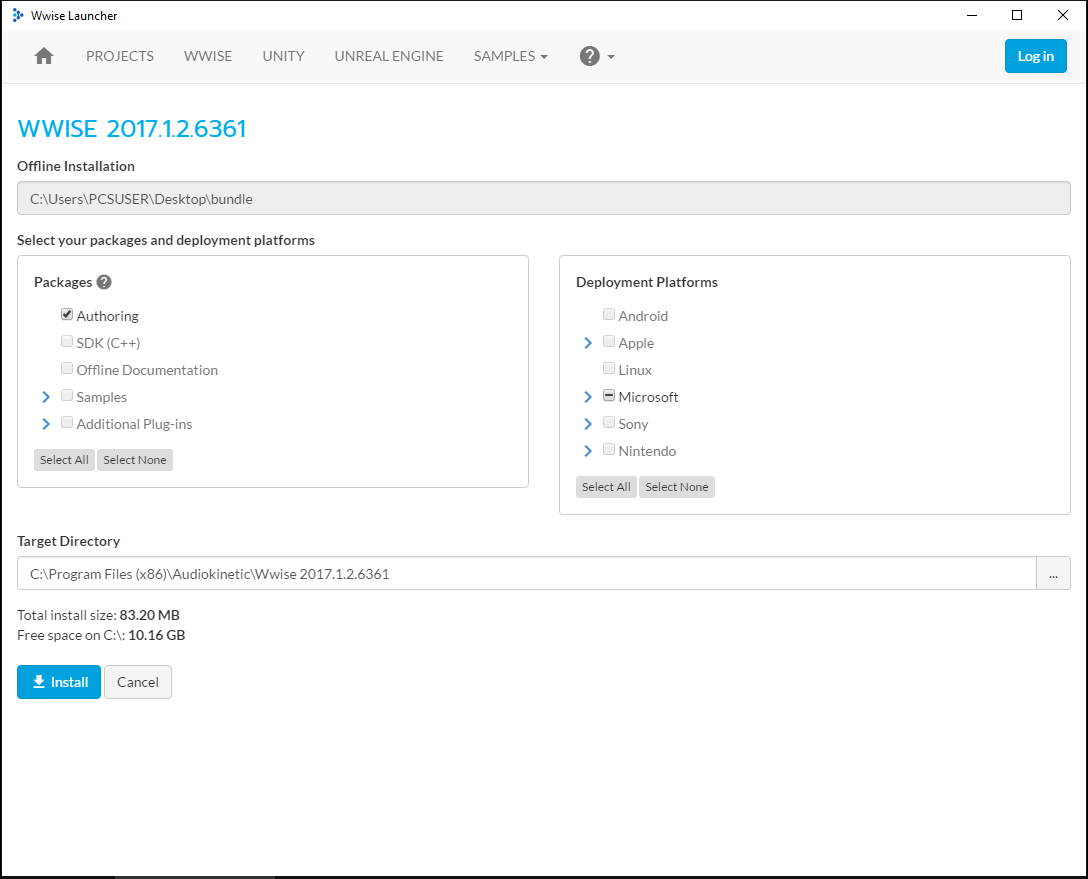](https://wiki.prowrestlingmods.io/uploads/images/gallery/2022-02/pre-setup.png)
#### Step #2 | Configuring the Sound Editor
We now configure Sound Editor.
- In the toolbar select **Settings**, then Settings again to open the configuration panel.
- Click 'WEM-Export directory' and choose a folder you want converted audio to be saved into.
- Click 'Wwise main directory' and select the folder where you installed WWise.
*Example: C:\\Program Files (x86)\\Audiokinetic\\Wwise 2017.1.2.636.*
- It is recommended to tick 'Create backups' but not compulsory.
- Click save.
[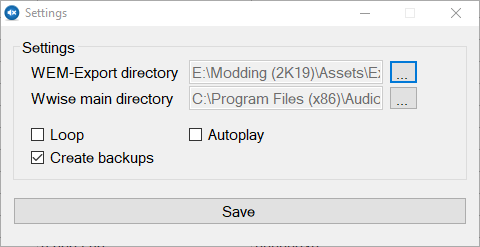](https://wiki.prowrestlingmods.io/uploads/images/gallery/2022-02/WUZstep1.png)
#### Step #2 | Converting MP3/WAV to WEM
Audio in 2K games must be in WEM format, MP3 and WAV must be converted into this format. Sound Editor has this functionality.
- In the toolbar, select *'Tools'*, then '*Sound Converter'*, this will open up a new window.
[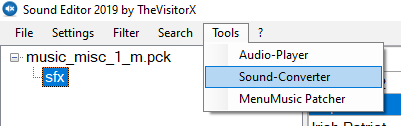](https://wiki.prowrestlingmods.io/uploads/images/gallery/2022-02/step1.png)
- With default properties untouched, select your sounds file(s) with *'Select Sounds'*.
[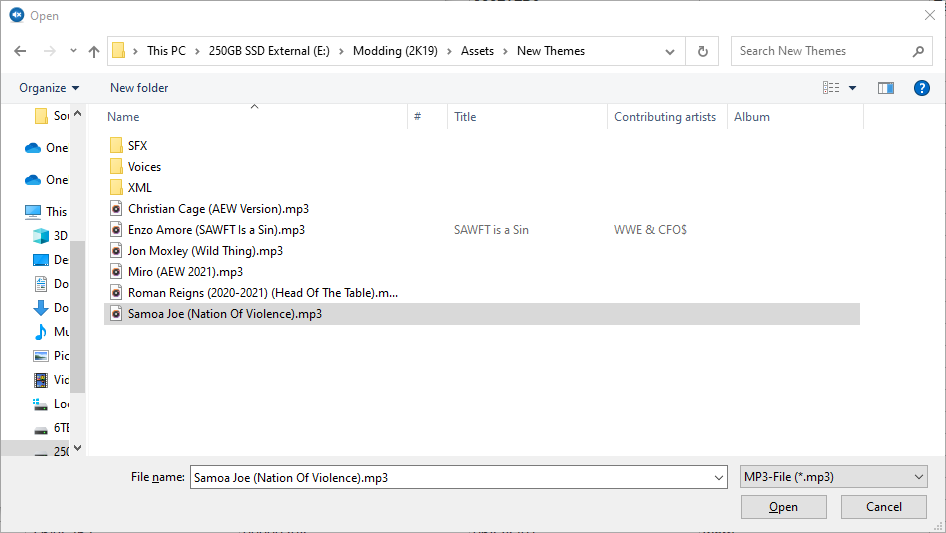](https://wiki.prowrestlingmods.io/uploads/images/gallery/2022-02/5gRstep2.png)
- Click *'Convert',* this process will take a few seconds, slower machines can take up to a minute.
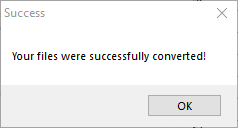
- If everything succeed without error, you will receive the following prompt. Your converted sounds will be in the folder that you selected in the settings.
[](https://wiki.prowrestlingmods.io/uploads/images/gallery/2022-02/success.png)
#### Step #3 | Replacing a Theme
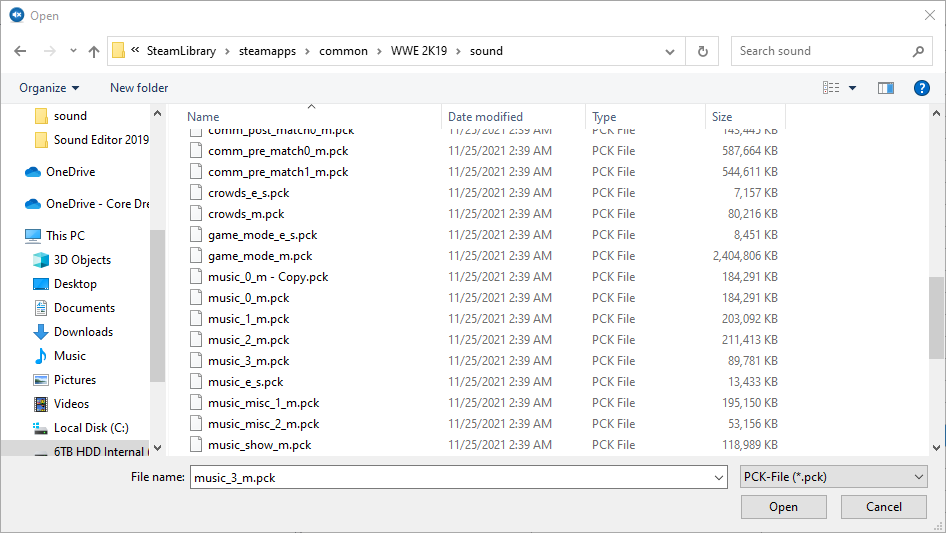
There are several [PCK](https://wiki.prowrestlingmods.io/link/7#bkmrk-pck) files which have distinct importance. Below is a sample for WWE 2K19 [PCK](https://wiki.prowrestlingmods.io/link/7#bkmrk-pck) files and what they pertain too.
| music\_show\_m.pck | Official PPV/Show Themes Pack |
| music\_misc\_1\_m.pck | Generic Themes/Show Themes Pack 1 |
| music\_misc\_2\_m.pck | Generic Themes/Show Themes Pack 2 |
| music\_0\_m.pck | Superstar Themes Pack 1 |
| music\_1\_m.pck | Superstar Themes Pack 2 |
| music\_2\_m.pck | Superstar Themes Pack 3 |
| music\_3\_m.pck | Superstar Tag Team/Trio/Stable Themes Pack |
Load the preferred PCK file you are wanting to replace audio in. This is located in your WWE game installation folder under sounds.
[](https://wiki.prowrestlingmods.io/uploads/images/gallery/2022-02/step5.png)
For this example we are going to replace the Irish Patriot generic theme.
- Click *'file > open'*, and select **music\_misc\_1\_m.pck**.
- Scroll until you see *'Irish Patriot'* or *'THEME Irish Patriot'*. It is recommended that you backup your files all the time. To backup, right click an entry and choose *'Export'* and save to your backup folder.
- Right click *'Irish Patriot'* and click Import. Find and select a WEM you want to use.
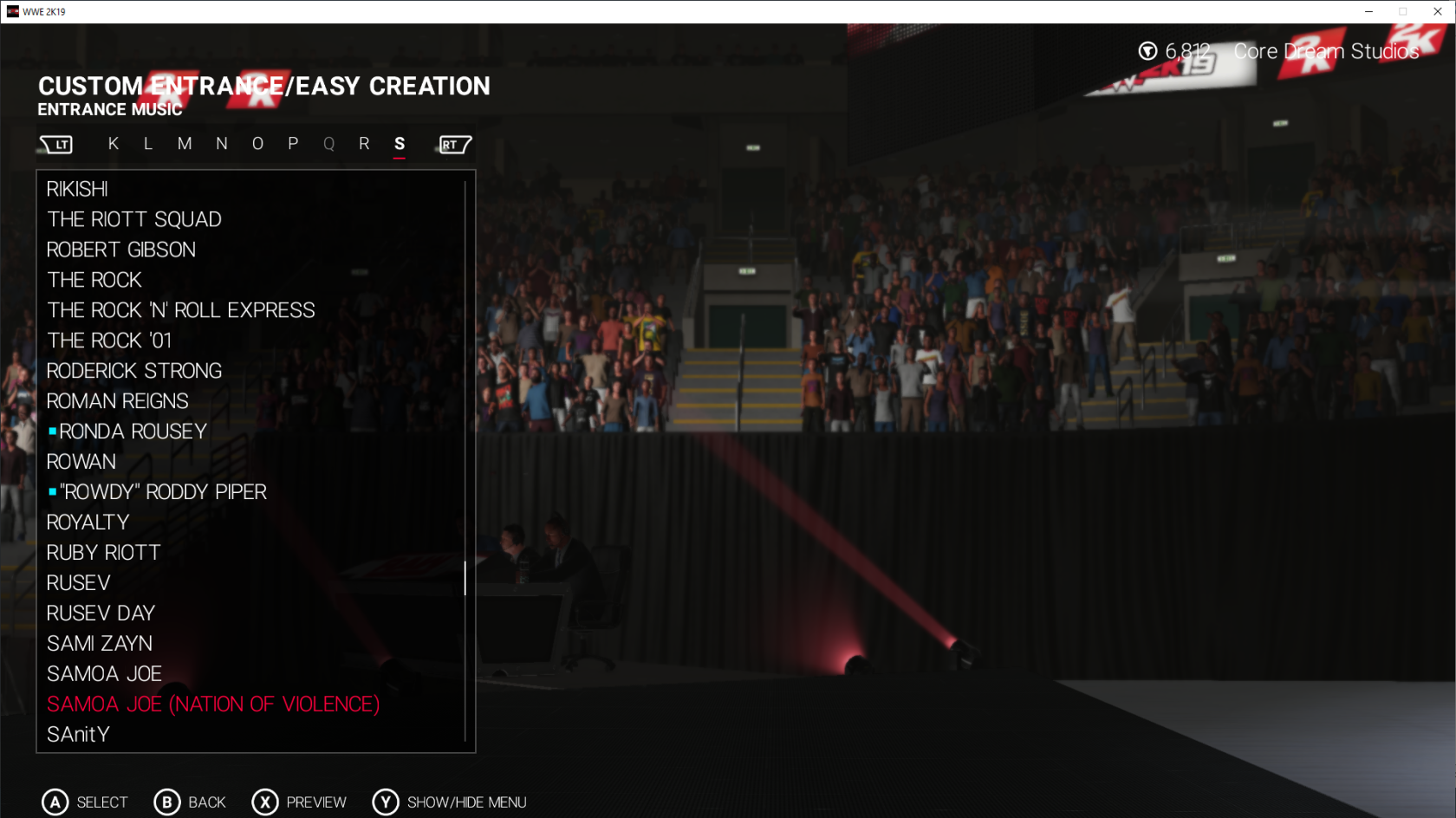
For this example, we used the **Samoa Joe (Nation of Violence)** theme.
You can right-click and select **Play** to preview any audio sample.
#### Step #4 | Adding a Theme Name (Easier than replacing the name)
Now that we have our theme in the game, using the example in Step #3, we need to change the string as well so we can find it in the menu under Themes. For this, we will need to use [WrestleMINUS](https://wiki.prowrestlingmods.io/link/9#bkmrk-wrestleminus-%7C-pozzu), which will allow us to
edit this area.
- Open up [WrestleMINUS](https://wiki.prowrestlingmods.io/link/9#bkmrk-wrestleminus-%7C-pozzu) and go to the following location.
WWE 2K19 / pac / string / win / string\_win.pac / 97ED1B14BC036AE7 / 00000000 / 00000000 UNCOMPRESS,
- Click this entry.
- On the right area, click *'String Viewer'* located in the tabs, this will show a grid of all strings in this [PAC](https://wiki.prowrestlingmods.io/link/7#bkmrk-pac) file.
- Scroll to the end and click *'Add'*, this will create a new entry below.
- Change the *HexRef* to a value not used in the list, anything under FFFFF will work, but it is recommended to just increment; example *E7F86*.
- Then change the *'String Text'* to what you need it to be, for this example: Samoa Joe (Nation of Violence).
- Click *Save***.**
The next part of this guide can be confusing for people new to modding. Keep a close eye on important details.
- Open up [ARC Tool](https://wiki.prowrestlingmods.io/link/9#bkmrk-pwm-arc-tool-%7C-grix). Select File / Open Archive from the toolbar (hotkey O) and open **cae\_item.pac** file in the Game Dir / Pac / Menu / folder.
- Right click *'0002'* and click '*Export Uncompressed Archive'*, and save it to a safe location. We will need it for [WrestleMINUS](https://wiki.prowrestlingmods.io/link/9#bkmrk-wrestleminus-%7C-pozzu).
- Back in [WrestleMINUS](https://wiki.prowrestlingmods.io/link/9#bkmrk-wrestleminus-%7C-pozzu), drag the newly exported file into the window.
- For this example, we look for Irish Patriot. You can sort by *'CAE Name'* by clicking the *'CAE Name'* header.
- We replace the String Ref here with the new one we made earlier, for our example it is *'E7F86'* . If this succeeded it should change in the *'CAE Name'*. If you get a exception error, that means the entry is invalid or missing in **string\_win.pac**.
- Select *'Save Changes'* and load your game.
#### Step #5 | Congratulations
Well done! That is the full theme replacement for your game.
[](https://wiki.prowrestlingmods.io/uploads/images/gallery/2022-02/image-1644540482462.png)